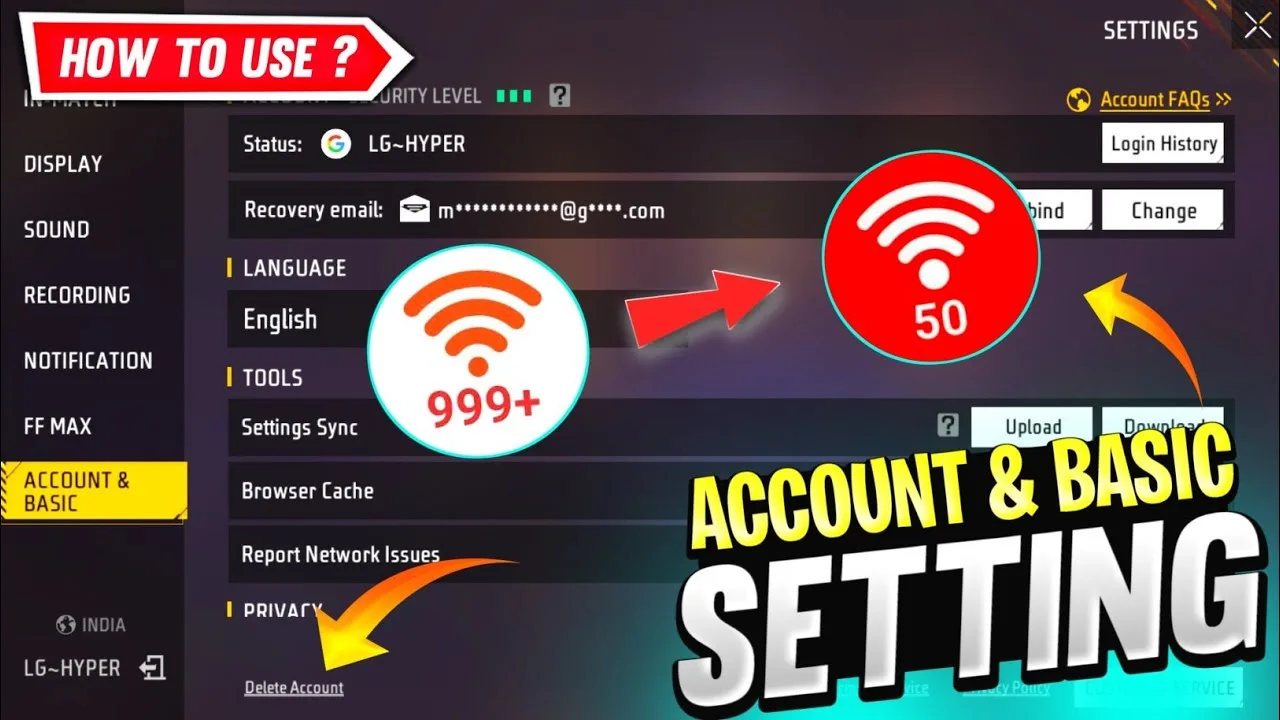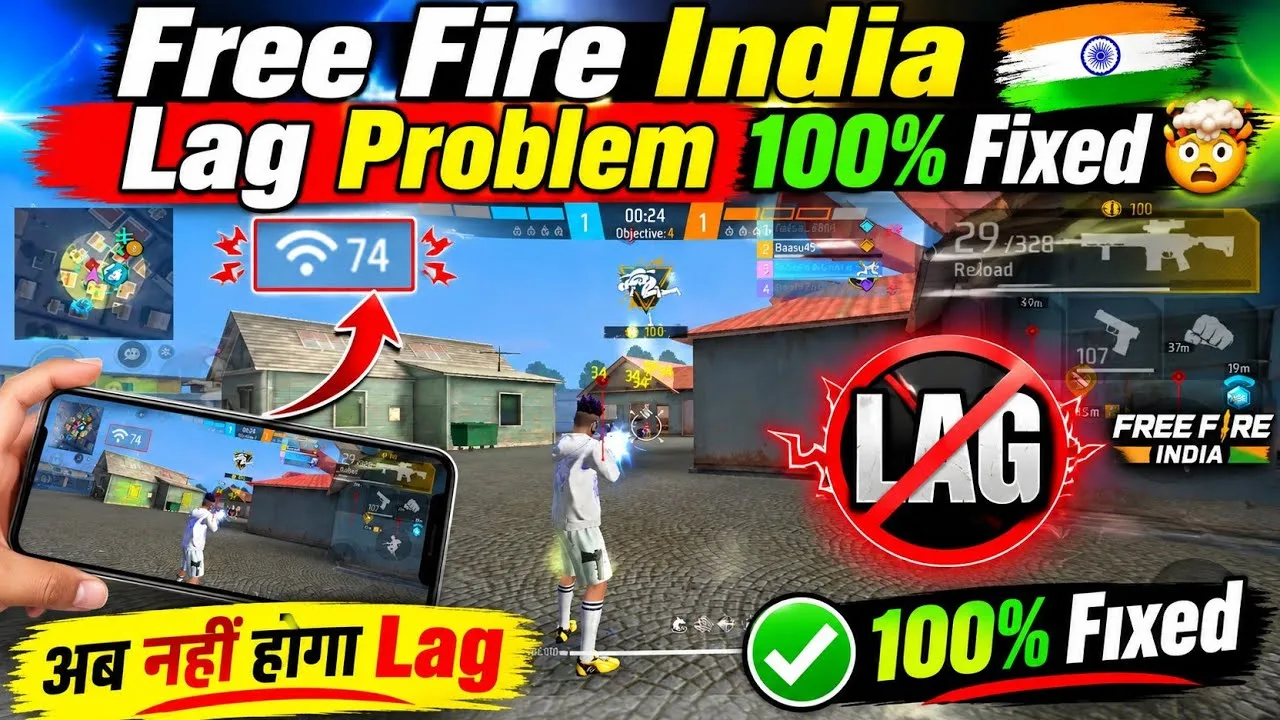
Lag is the word players use for two different problems, and fixing the wrong one wastes whole evenings. Network lag means your actions reach the game late: shots register after a delay, players jump around, and the ping number climbs. Device stutter means the phone itself cannot draw the game smoothly: the picture hitches even in menus and practice, whatever the connection does.
This guide separates the two first, then fixes each with the steps that actually address it. If the app is not installed yet, begin at the FF Amazon Android APK overview overview. If the game will not open at all, that is a different problem family, and FF Amazon not working common problems and fixes covers crashes and launch failures instead.
Diagnose Before You Fix
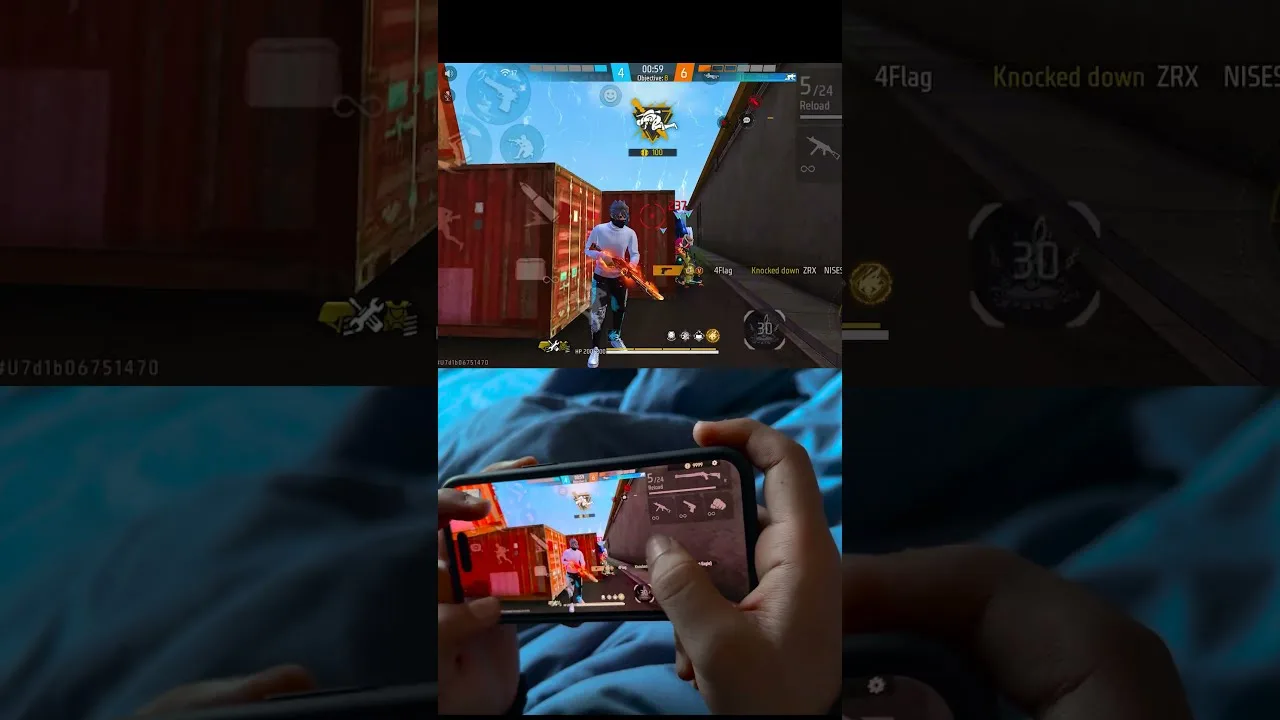
Run one test in training mode and one in an online match. If training feels smooth but matches stutter, your problem is the network. If training also hitches, your problem is the device. Watch the in-game ping display during a match as well: a number that spikes when action starts points to connection strain, while a low steady ping with a choppy picture points to the phone.
Note when the problem happens. Lag only in the evening suggests a crowded home network or a busy local connection. Lag only after twenty minutes of play suggests heat. Lag everywhere from the first minute suggests settings or storage. Timing is a clue, and writing down one line about it makes every later step smarter.
Fix Network Lag
Move closer to the router and remove walls between you and it where possible. Prefer the less crowded Wi-Fi band your router offers, and ask household members to pause large streams or downloads during important matches. Restart the router occasionally; home routers that run for months accumulate odd behaviour that a restart quietly clears.
On mobile data, a strong stable signal beats a weak fast one. Playing near a window or in the part of the house with the best reception can cut spikes dramatically. Close other apps that use the network in the background, and avoid playing while the phone downloads updates or backs up photos in the middle of a session.
Fix Device Stutter
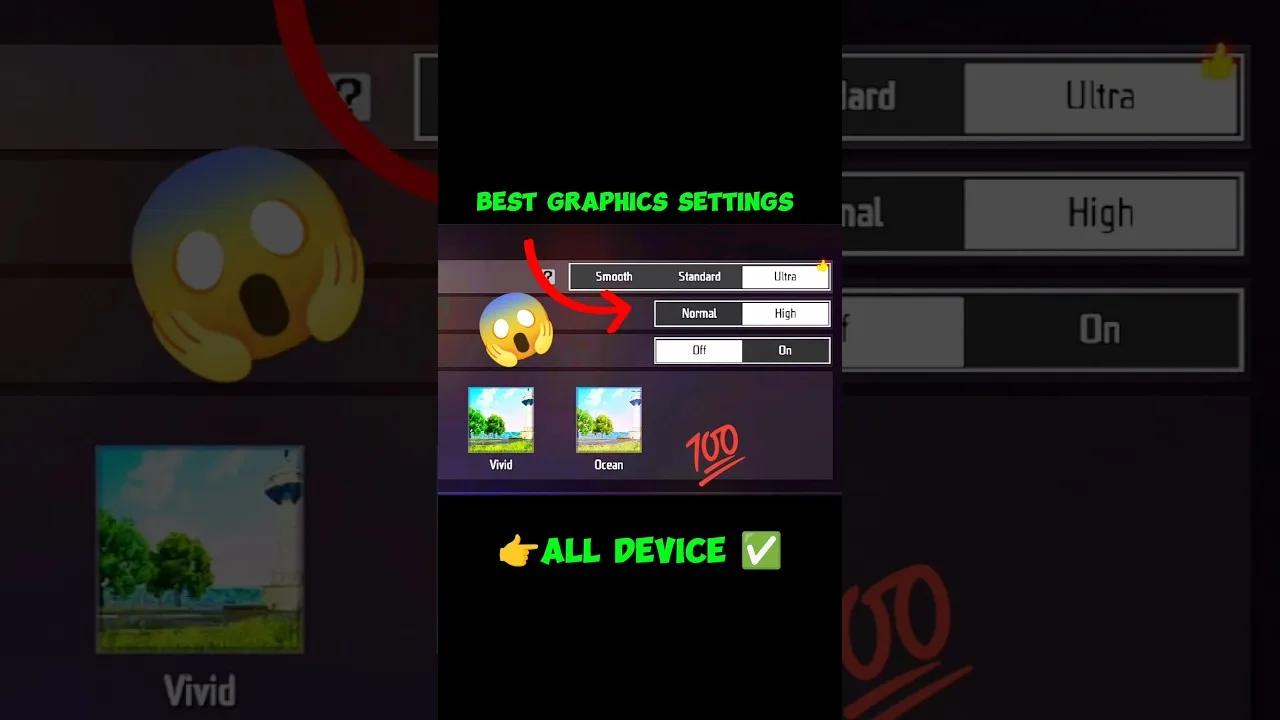
Device stutter responds to lighter settings and a cleaner system. Lower the graphics preset a level, protect frame rate, and close recent apps before playing. The detailed routine in FF Amazon performance tips for low-end phones covers graphics, storage, and background load in the order that helps most on modest phones.
Heat deserves its own check. If matches start smooth and degrade, remove the case, stop charging while playing, and take short breaks. If even menus stutter on a cool phone with free storage, restart the device, clear the game cache, and make sure the game and Android itself are updated, since performance fixes often arrive quietly inside ordinary updates.
Router and Connection Habits
A few permanent habits keep network lag rare. Keep the router in the open rather than inside a cupboard, update its firmware when the maker offers it, and give the gaming device a consistent spot in the home where the signal is known to be strong. If your router supports prioritising a device, prioritising the phone you play on is a legitimate, lasting improvement.
Avoid stacking workarounds. Extra apps that promise to boost or reroute your connection usually add their own overhead and confusion, and they make diagnosis harder when problems remain. A clean path, phone to router to provider, with sensible habits, outperforms a pile of booster tools for most home players.
When Lag Points to a Bigger Problem
If one game lags while everything else on the phone flies, and every step here has been tried, the issue may be a damaged install or a problem at the provider's side at that hour. Testing at a different time of day separates those two: provider congestion fades at quiet hours, while a damaged install lags at every hour until repaired.
Repair, in that case, means the careful route: back up your settings, clear the cache, and only as a final step reinstall cleanly and sign back in. Keep your account details ready before any reinstall, and treat it as the last tool rather than the first, because most lag never needs it.
Quick Tests You Can Run in Five Minutes
Three quick tests isolate most lag before any settings change. First, stand beside the router and play a short match: if lag vanishes, distance and walls were the problem. Second, play at an unusual quiet hour: if lag vanishes then but returns in the evening, congestion is the problem. Third, play training mode drills: if stutter remains there, the device is the problem.
Run the tests in that order and write down the result of each in one short line. Diagnosis notes turn a vague complaint into a specific fault, and a specific fault usually has a specific, cheap fix. Players who skip the tests often buy new routers to solve heat problems or lower graphics to solve Wi-Fi problems, spending effort everywhere except where the fault actually lives.
Final Thoughts
Lag yields to diagnosis: separate network delay from device stutter, read the timing clues, then apply the matching fixes instead of all fixes at random. Most players solve their problem with a better router position, one graphics level, and a cleaner background. Test honestly after each change and keep the combination that survives a busy evening match.