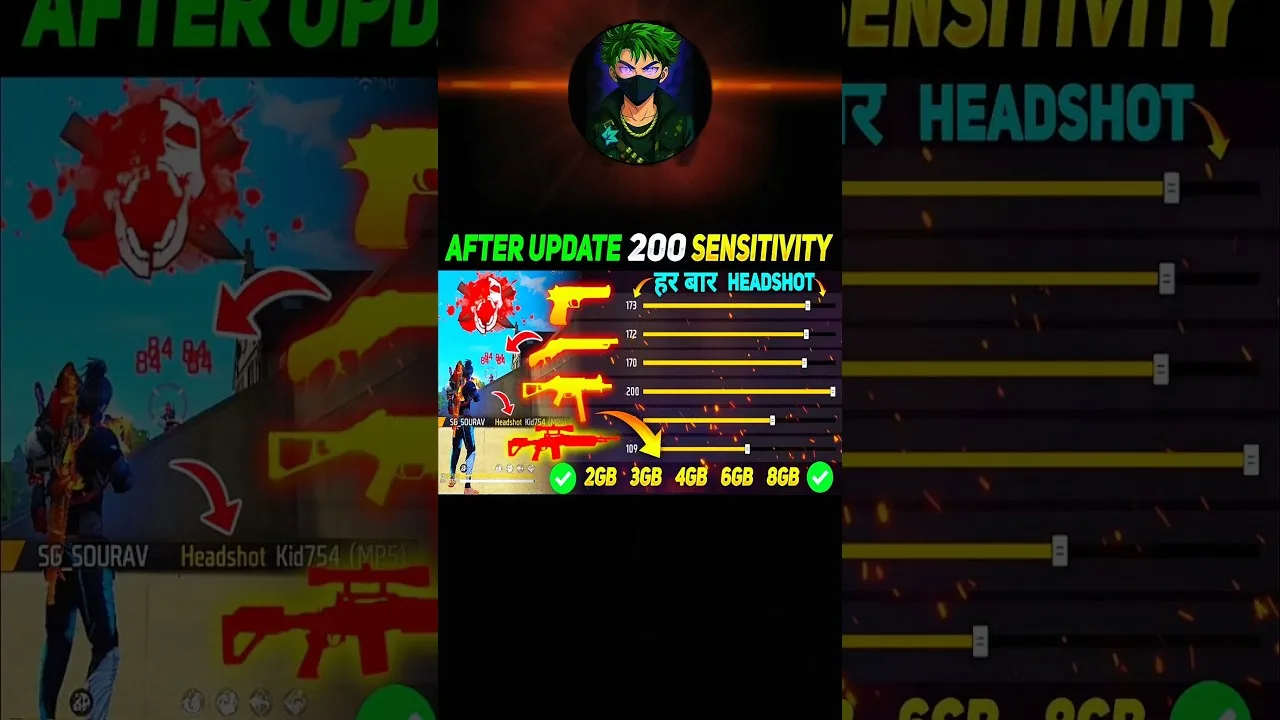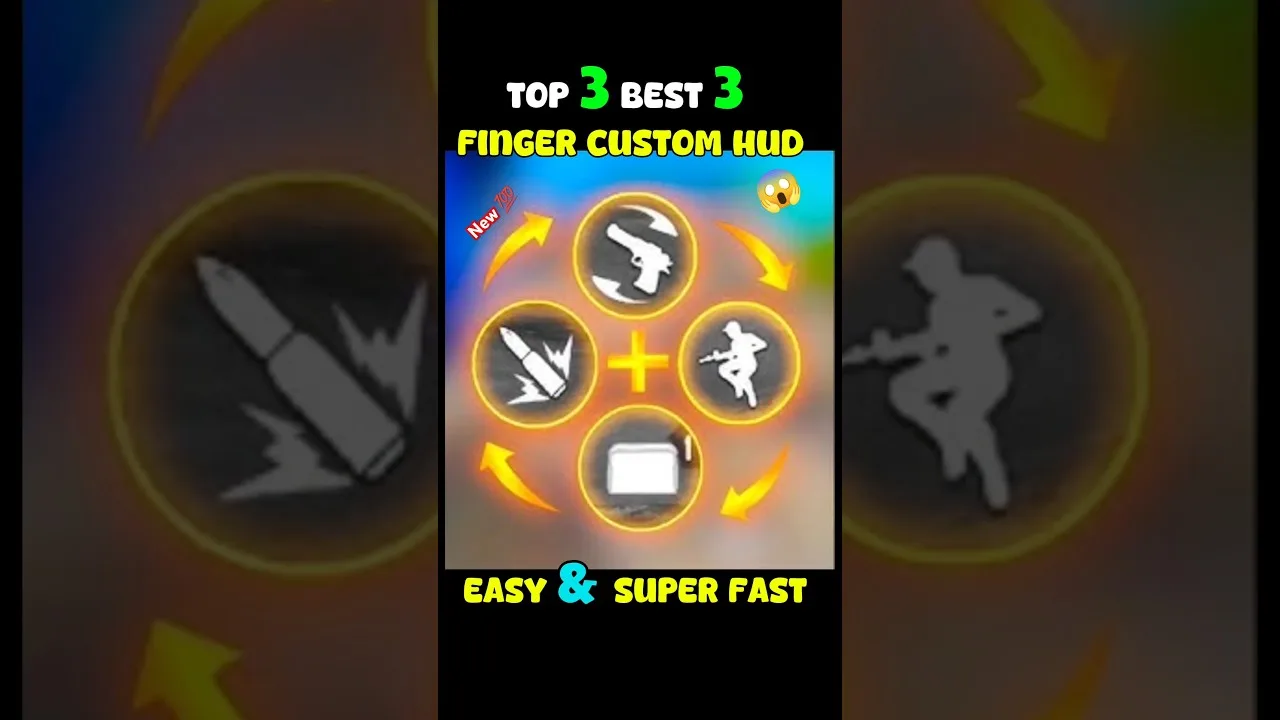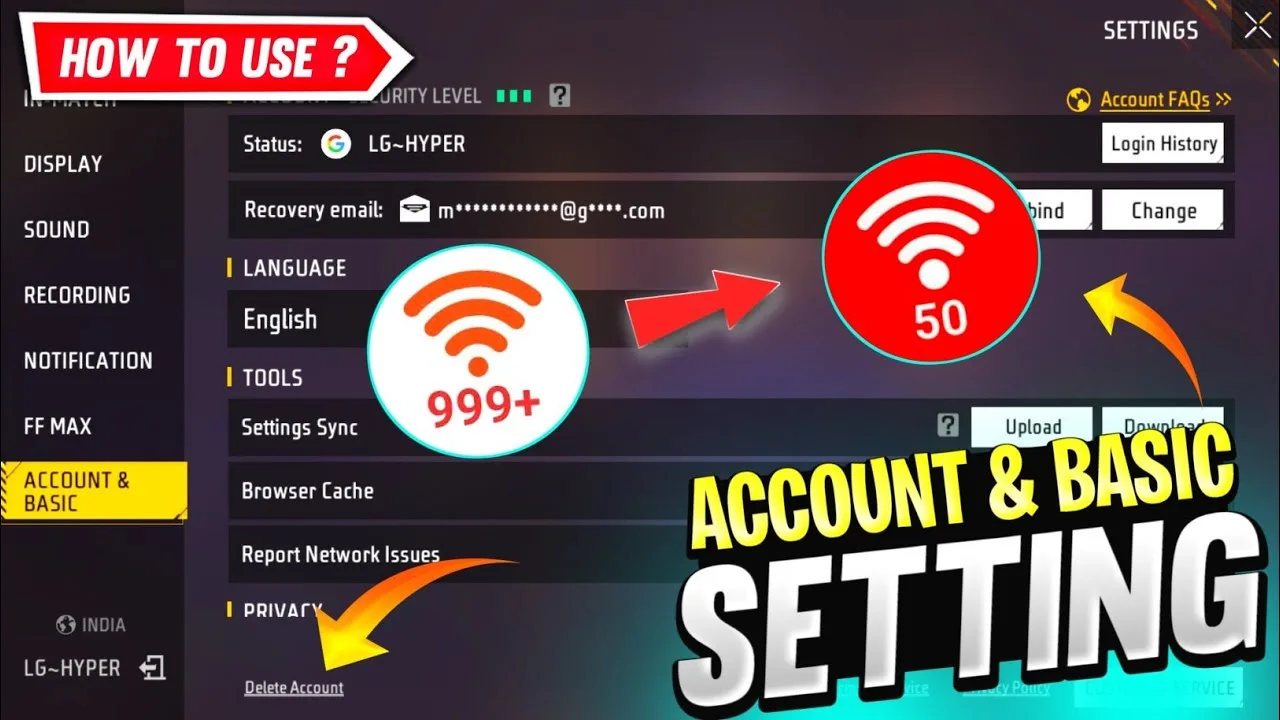
Graphics settings control the trade-off between how the game looks and how smoothly it runs. FF Amazon offers presets and individual options, but the menus rarely explain what each one really costs. Players often copy a screenshot of settings from a stronger phone and end up with pretty menus and choppy fights, which is the worst of both worlds.
This guide explains each major option in plain language so you can build a combination that suits your device. If you have not installed the app yet, start with the get FF Amazon on Android overview, then return here before your first serious session. Settings chosen with understanding last far longer than settings copied in a hurry.
Presets: Smooth, Standard, and Ultra
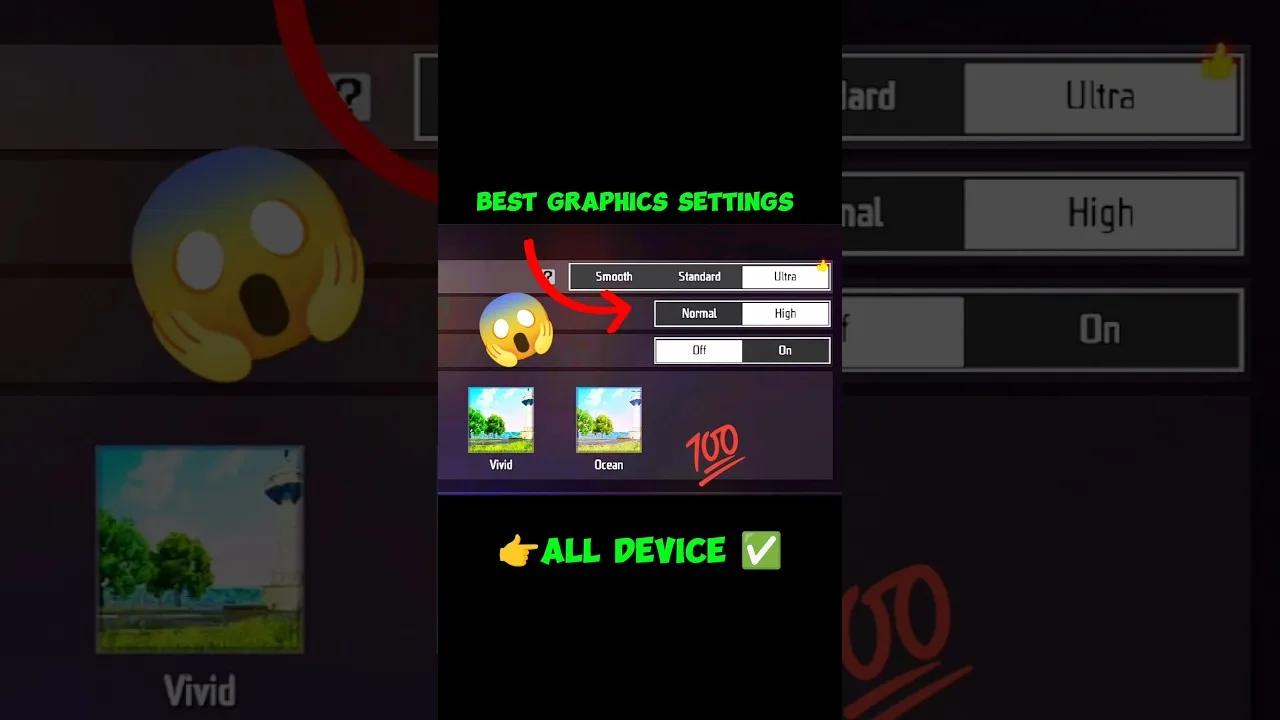
Presets bundle several options into one tap. The smoothest preset lowers resolution, effects, and detail to protect frame rate, while the highest preset turns everything up for the strongest hardware. Standard sits between them and is the sensible starting point for most mid-range phones. Presets are starting points, not verdicts, because you can adjust individual options afterwards.
Choose your preset by the worst moment, not the best. The lobby and quiet areas look fine on almost any preset; a final-circle fight with many players nearby is the true test. If the picture stays steady there, the preset fits your phone. If it falls apart, drop one level and test again before touching anything else.
Frame Rate Matters Most
Frame rate decides how many times per second the picture updates, and it influences how responsive aiming and movement feel. A higher, stable frame rate is worth more than prettier textures, because your inputs and your view stay in sync. When the game offers frame rate choices, pick the highest option your phone can hold steadily rather than the highest it can briefly reach.
Stability beats peaks. A phone that swings between high and low frame rates feels worse than one locked at a moderate rate, because the timing of your swipes keeps changing. If you play on modest hardware, the practical advice in FF Amazon performance tips for low-end phones shows how to protect frame rate with system habits as well as menu choices.
Textures, Shadows, and Effects
Texture quality changes how sharp surfaces and clothing look. It mainly costs memory, so phones with little RAM feel this option more than they expect. Shadows add depth and can occasionally help you notice movement, but they are expensive to draw and are usually the first extra to disable on weaker devices. Effects settings govern particles, hits, and environmental flourishes.
None of these options change what you are allowed to do in the game; they change how clearly and smoothly you see it. Competitive players commonly run modest textures, shadows off, and effects restrained, even on strong phones, because a cleaner picture is easier to read quickly. Casual players who value looks can raise them, accepting the performance cost with open eyes.
Resolution and Brightness Choices
Some builds expose a resolution or rendering scale option. Lowering it is the single most powerful performance lever, at the cost of a softer picture. On small phone screens the softness is often less noticeable than people fear, especially during fast movement. Try one step down before sacrificing everything else; many players find the balance surprisingly good.
Brightness and colour settings deserve a mention because visibility is a competitive feature. A slightly brighter picture with strong contrast helps you pick out movement in dark interiors and shaded corners. Check how your phone's automatic brightness behaves outdoors too, since a dimming screen mid-match can hide exactly the detail you were scanning for.
Match Settings to Your Hardware
Your phone's processor, memory, and screen set the realistic ceiling for these choices. The FF Amazon device compatibility guide gives a useful sense of which device classes handle which loads comfortably. Use it to sanity-check your ambitions: a phone near the minimum requirements should start at the smooth end, while a recent flagship can explore the top presets.
Whatever you choose, change one option at a time and test in a busy scene. Notes help here as well: write down the combination that survived your hardest test without stutter. That combination becomes your personal preset, and it will serve you far better than any influencer's screenshot.
A Practical Way to Build Your Own Preset
Start at the smoothest preset and play one busy match. If the picture stays steady from start to finish, raise exactly one option, textures are a gentle first step, and play another busy match. Continue raising one option at a time until you find the first change that makes busy fights stutter, then undo only that change. What remains is the best-looking combination your phone can honestly sustain.
Write down the final combination and screenshot the page. Phones get reset, games get reinstalled, and borrowed screenshots will tempt you again later. Your own tested preset, recorded once, ends the experiment permanently. From then on, graphics stop being a recurring question and become a settled part of your setup that you only revisit when the phone itself changes.
Final Thoughts
Graphics settings are a budget, and frame rate is the first thing to buy. Start from a preset that survives your busiest fights, trim shadows and effects before touching anything else, and let your own device, not someone else's screenshot, make the final call. A clear, steady picture wins more fights than a beautiful, stuttering one.